
In step 2, you'll select and confirm your recurring, regular Income and Sheltered expenses (2-5 mins).
Income
Select
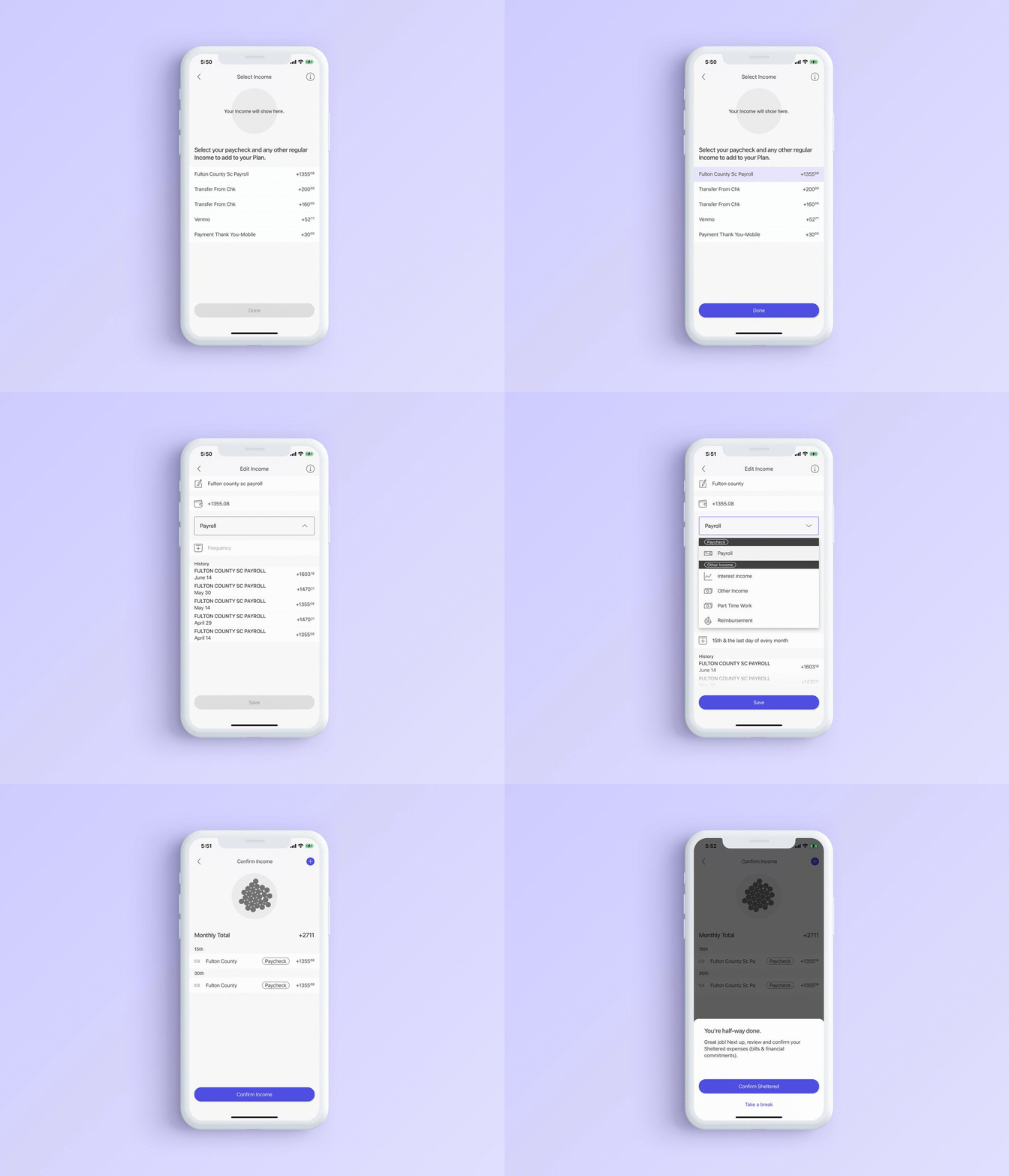
First, select your paycheck and any other regular Income. This may include part-time work, regular reimbursements, recurring roommate housing reimbursements, and other recurring income.
Confirm
Next, you'll confirm your Income. Here's where you can change the name, adjust the amounts, select a category, and confirm the frequency. After you've saved the details of each Income, your beans will accumulate at the top of the screen.
Remove / Add Income
If something is missing from the list, you'll be able to add it when you confirm your Income by tapping the blue + button. If you'd like to remove a Sheltered expense, swipe it away.
You're half way done.
After you've confirmed your Income, you'll have the option to confirm your Sheltered expenses (financial commitments like bills and savings) or take a break. If you choose to take a break, when you return to this step you'll begin with selecting your Sheltered expenses.
Sheltered expenses
Select
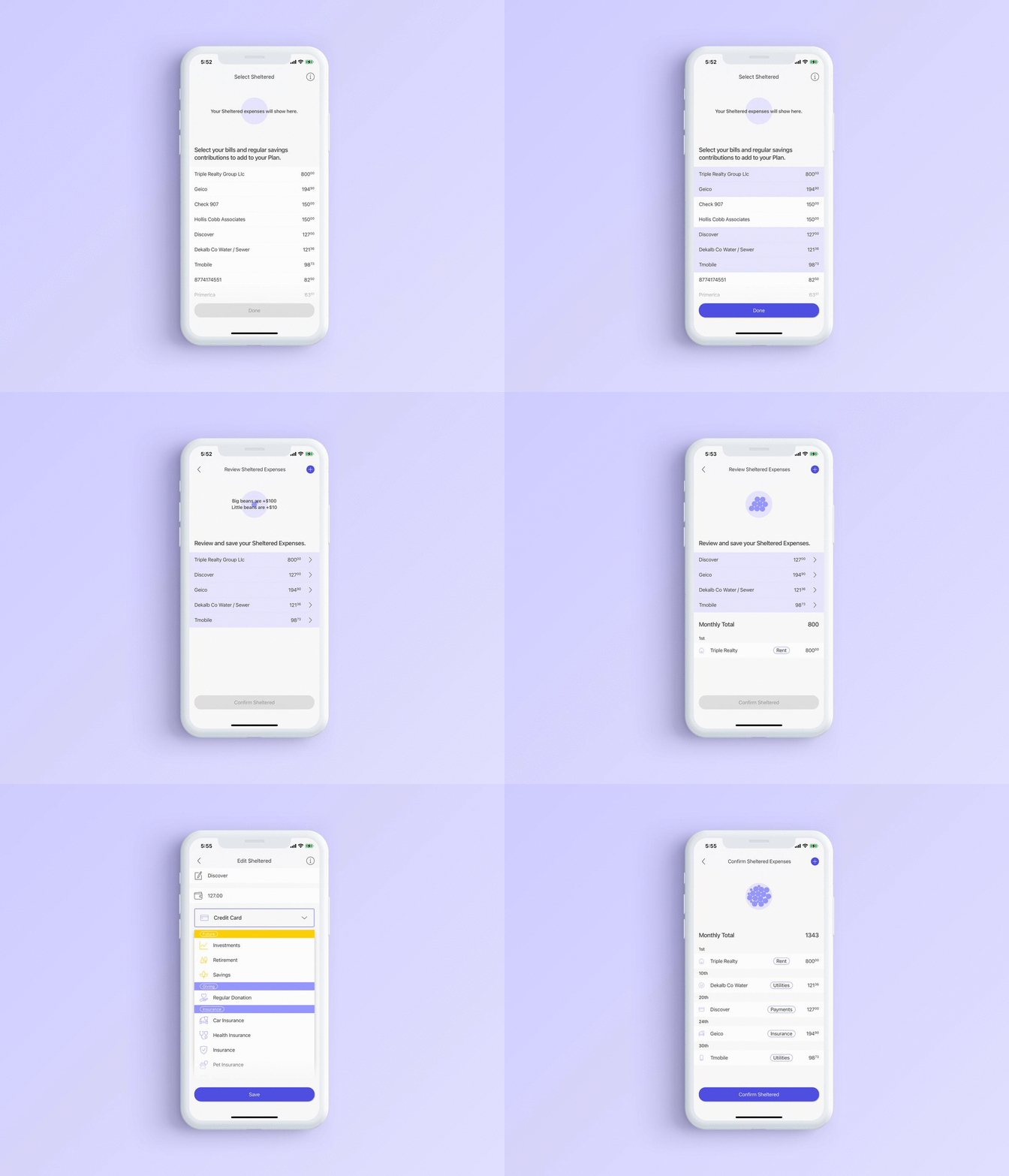
The Beans will display your expenses based on the accounts you connected. Select your Sheltered expenses (financial commitments like bills and savings) and tap the done button. If something is missing from this list and the account it's paid out of is connected, you'll be able to add it on the next screen.
Confirm
Next, you'll confirm your Sheltered expenses. Tap into each highlighted Sheltered expense to edit the name, amount, category, and frequency. After you've saved the details of each Sheltered expense, you'll see your beans accumulating at the top of the screen.
Remove / Add expenses
If something is missing from the list, you'll be able to add it when you confirm your Sheltered expenses by tapping the blue + button. If you'd like to remove a Sheltered expense, swipe it away.
Once you've saved each Sheltered expense, tap the confirm button to complete Step 2.
Comments
0 comments
Article is closed for comments.